GlaberGraph documentation
Administration
Correlations
Use variables and transformations in a correlation
GlaberGraph documentation
Administration
Correlations
Use variables and transformations in a correlation
Use variables and transformations in a correlation
Before you begin
This example walks through creating a link in a test data source but the same principles apply to any data source.
The example emulates a scenario with two data sources:
- Logs containing lines in the format: “2020-01-01 10:00 level=error message=error service=app1.loginService” stored in a field named “msg”
- Metrics for application included in the service name of a log line (e.g. app1)
Instructions below show how to set up a link that can run metrics query for the host included in each log line with provisioning and regex transformation. Additionally, a link with a query containing the full name of the service is set up to demonstrate the logfmt transformation.
Use variables and transformations in provisioning
-
Add the following provisioning configuration to your Grafana:
datasources:
  - name: Target
    uid: test-target
    type: testdata

  - name: Source
    uid: test-source
    type: testdata
  - name: Source
    uid: test-source
    type: testdata
    correlations:
      - targetUID: test-target
        label: App metrics
        description: Application HTTP request metrics
        config:
          type: query
          target:
            scenario_id: random_walk
            alias: $${application}
          field: msg
          transformations:
            - type: regex
              field: msg
              expression: service=(\w+)\.\w+
              mapValue: application
      - targetUID: test-target
        label: Service metrics
        description: Service metrics
        config:
          type: query
          target:
            scenario_id: random_walk
            alias: $${service}
          field: msg
          transformations:
            - type: logfmt
              field: msg
Two data sources are created: Source (emulating logs data source) and Target (emulating metrics data source):
- A correlation called “App metrics” is created targeting the Target data source with its UID.
- The label and description are provided as text
- Each correlation contains the following configuration:
- Required correlation type (query)
- Target query matching test data source model
- “App metrics” correlation contains the following configuration:
- Alias is set to ${application} variable (note that in provisioning files $ is used to access environment variables so it has to be escaped).
- Regular expression transformation is created to extract values from “msg” field
- Regular expression transformation is used to capture the application name from the full name of the service stored in the log line.
- The output of the transformation is mapped to a variable called “application”.
- “Service metrics” correlation is created in a similar way but with logfmt transformation to break down log message and access full name of the service (e.g. “app1.loginService”).
- For example, when a logline “2020-01-01 10:00 level=error message=error service=app1.loginService” is provided as the input, the transformation produces new variables: level, message, and service.
- “service” variable is used as the alias in the target query.
- A correlation called “App metrics” is created targeting the Target data source with its UID.
-
Navigate to Explore and open “Source” data source.
-
Select the “Raw Frames” scenario and provide the following data frames to emulate returning log lines:
[ { "meta": { "preferredVisualisationType": "logs" }, "fields": [ { "name": "time", "values": [1, 2] }, { "name": "msg", "values": [ "level=error msg=error service=app1.loginService", "level=debug msg=info service=app2.userProfileService" ] } ] } ] -
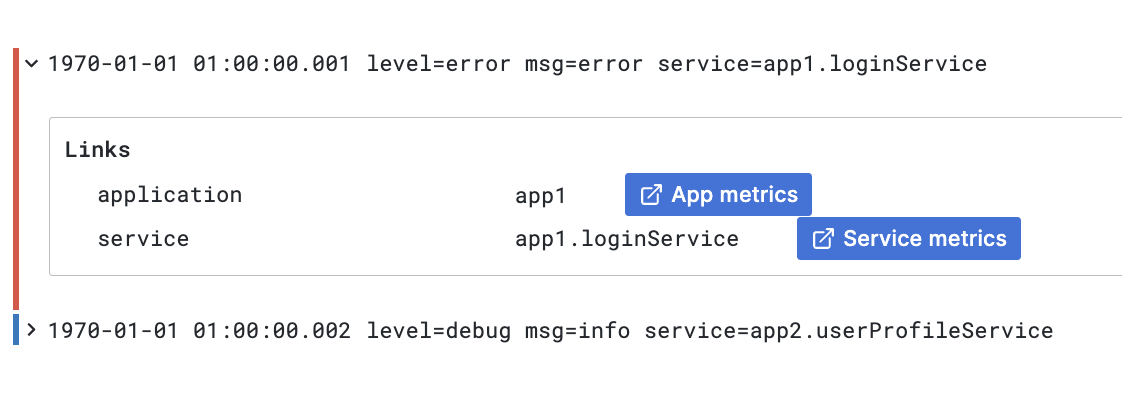
Run the query and open log details by clicking on the log line.

Correlation links in Logs panel A link “App metrics” and “Service metrics” show next to variables extracted out of the log line with transformations
-
Click on the “App metrics” link.
-
A split view is opened and the target query is run.
-
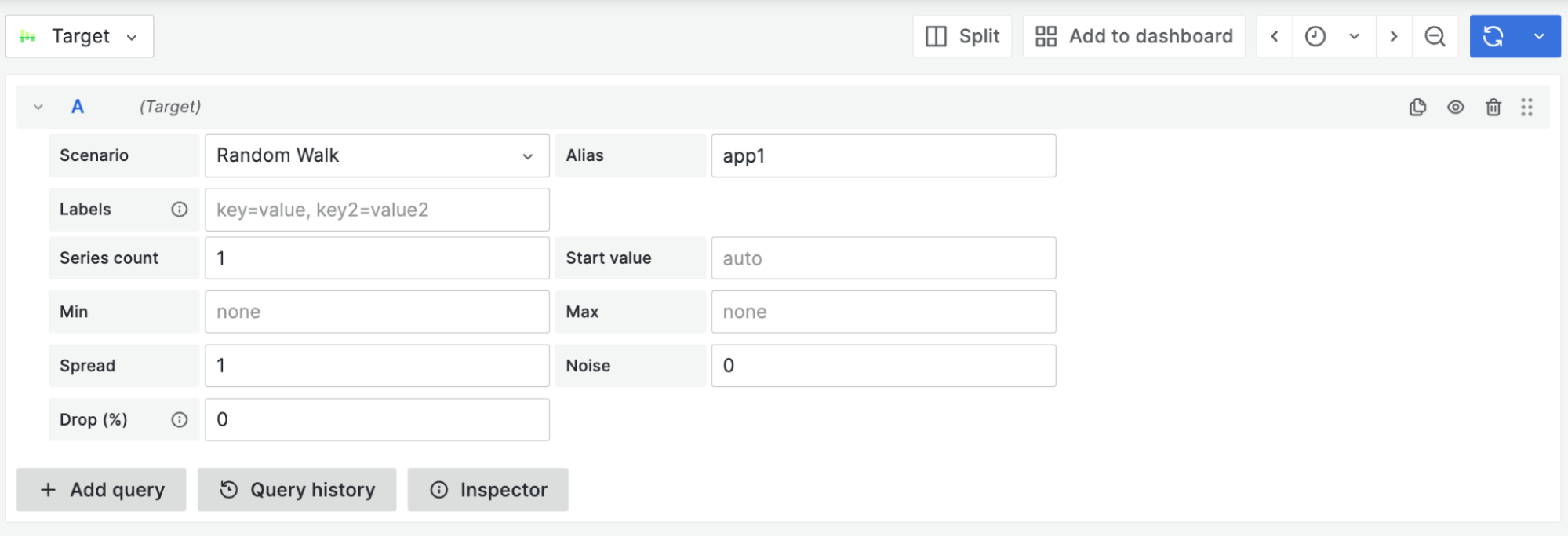
Notice how the application name from the log line is filled in as the alias property in the target query.

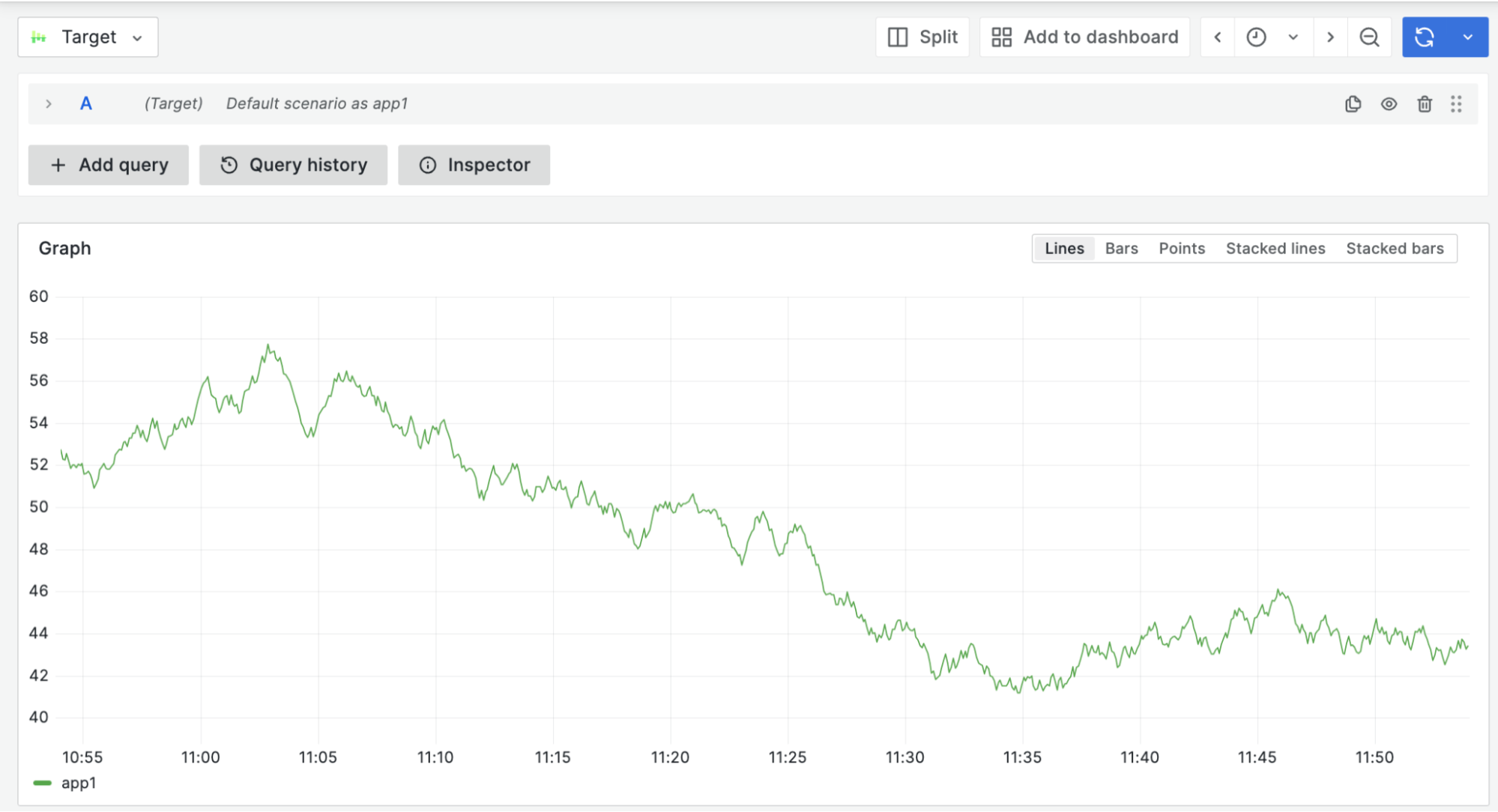
Interpolated target query This allows you to run a specific query based on the source results:

Interpolated target query results -
Go back to the source query and change raw frames’ preferred visualization type to “table” to see how links are displayed in a Table visualization.
[ { "meta": { "preferredVisualisationType": "table" }, "fields": [...] } ] -
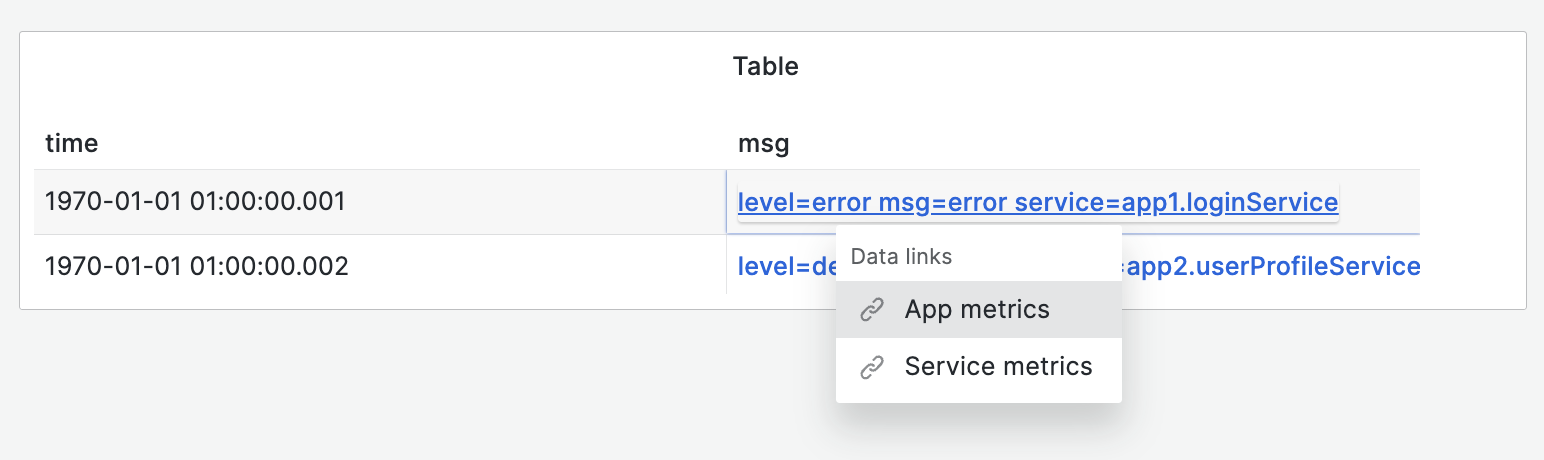
Run the query and notice how links are created in the Table cell:

Correlations links in table