
Upgrade to Grafana v12.0
We recommend that you upgrade Grafana often to stay current with the latest fixes and enhancements. Because Grafana upgrades are backward compatible, the upgrade process is straightforward, and dashboards and graphs will not change.
In addition to common tasks you should complete for all versions of Grafana, there might be additional upgrade tasks to complete for a version.
Note
There might be breaking changes in some releases. We outline all these changes in the What’s New document.
For versions of Grafana prior to v9.2, we published additional information in the Release Notes.
When available, we list all changes with links to pull requests or issues in the Changelog.
Note
When possible, we recommend that you test the Grafana upgrade process in a test or development environment.
Back up Grafana
This topic explains how to back up a local Grafana deployment, including configuration, plugin data, and the Grafana database.
Back up the Grafana configuration file
Copy Grafana configuration files that you might have modified in your Grafana deployment to a backup directory.
The Grafana configuration files are located in the following directories:
- Default configuration:
$WORKING_DIR/defaults.ini(Don’t change this file) - Custom configuration:
$WORKING_DIR/custom.ini
For more information on where to find configuration files, refer to Configuration file location.
Note
If you installed Grafana using the
deborrpmpackages, then your configuration file is located at/etc/grafana/grafana.ini. This path is specified in the Grafanainit.dscript using--configfile parameter.
Back up plugin data
Installing plugins in Grafana creates a folder for each plugin with its associated files and data. Copy all files and folders recursively from this location to your backup repository.
The Grafana plugin files are located in the following directories:
- Default location for plugins in a binary or source installation:
$WORKING_DIR/data/plugins - Default location for plugins in a
deborrpmpackage:/var/lib/grafana/plugins. This path is specified in the Grafana init.d script using--configfile parameter.
Back up the Grafana database
We recommend that you back up your Grafana database so that you can roll back to a previous version, if required.
SQLite
The default Grafana database is SQLite, which stores its data in a single file on disk. To back up this file, copy it to your backup repository.
Note
To ensure data integrity, shut down your Grafana service before backing up the SQLite database.
The SQLite database file is located in one of the following directories:
- Default location for SQLite data in a binary or source installation:
$WORKING_DIR/data/grafana.db - Default location for SQLite data in a
deborrpmpackage:/var/lib/grafana/grafana.db. This path is specified in the Grafana init.d script using--configfile parameter.
MySQL
To back up or restore a MySQL Grafana database, run the following commands:
backup:
> mysqldump -u root -p[root_password] [grafana] > grafana_backup.sql

restore:
> mysql -u root -p grafana < grafana_backup.sql
Postgres
To back up or restore a Postgres Grafana database, run the following commands:
backup:
> pg_dump grafana > grafana_backup

restore:
> psql grafana < grafana_backup
Upgrade Grafana
The following sections provide instructions for how to upgrade Grafana based on your installation method. For more information on where to find configuration files, refer to Configuration file location.
Debian
To upgrade Grafana installed from a Debian package (.deb), complete the following steps:
-
In your current installation of Grafana, save your custom configuration changes to a file named
<grafana_install_dir>/grafana.ini.This enables you to upgrade Grafana without the risk of losing your configuration changes.
-
Download the latest version of Grafana.
-
Run the following
dpkg -icommand.wget <debian package url> sudo apt-get install -y adduser sudo dpkg -i grafana_<version>_amd64.deb
APT repository
To upgrade Grafana installed from the Grafana Labs APT repository, complete the following steps:
-
In your current installation of Grafana, save your custom configuration changes to a file named
<grafana_install_dir>/grafana.ini.This enables you to upgrade Grafana without the risk of losing your configuration changes.
-
Run the following commands:
sudo apt-get update
sudo apt-get upgrade
Grafana automatically updates when you run apt-get upgrade.
Binary .tar file
To upgrade Grafana installed from the binary .tar.gz package, complete the following steps:
-
In your current installation of Grafana, save your custom configuration changes to the custom configuration file,
custom.iniorgrafana.ini.This enables you to upgrade Grafana without the risk of losing your configuration changes.
-
Download the binary
.tar.gzpackage. -
Extract the downloaded package and overwrite the existing files.
RPM or YUM
To upgrade Grafana installed using RPM or YUM complete the following steps:
-
In your current installation of Grafana, save your custom configuration changes to a file named
<grafana_install_dir>/grafana.ini.This enables you to upgrade Grafana without the risk of losing your configuration changes.
-
Perform one of the following steps based on your installation.
-
If you downloaded an RPM package to install Grafana, then complete the steps documented in Install Grafana on Red Hat, RHEL, or Fedora or Install Grafana on SUSE or openSUSE to upgrade Grafana.
-
If you used the Grafana YUM repository, run the following command:
sudo yum update grafana -
If you installed Grafana on openSUSE or SUSE, run the following command:
sudo zypper update
-
Docker
To upgrade Grafana running in a Docker container, complete the following steps:
-
Use Grafana environment variables to save your custom configurations; this is the recommended method. Alternatively, you can view your configuration files manually by accessing the deployed container.
This enables you to upgrade Grafana without the risk of losing your configuration changes.
-
Run a commands similar to the following commands.
Note
This is an example. The parameters you enter depend on how you configured your Grafana container.
docker pull grafana/grafana
docker stop my-grafana-container
docker rm my-grafana-container
docker run -d --name=my-grafana-container --restart=always -v /var/lib/grafana:/var/lib/grafana grafana/grafana
Windows
To upgrade Grafana installed on Windows, complete the following steps:
-
In your current installation of Grafana, save your custom configuration changes to a file named
<grafana_install_dir>/conf/custom.ini.This enables you to upgrade Grafana without the risk of losing your configuration changes.
-
Download the Windows binary package.
-
Extract the contents of the package to the location in which you installed Grafana.
You can overwrite existing files and folders, when prompted.
Mac
To upgrade Grafana installed on Mac, complete the following steps:
-
In your current installation of Grafana, save your custom configuration changes to the custom configuration file,
custom.ini.This enables you to upgrade Grafana without the risk of losing your configuration changes.
-
Download the Mac binary package.
-
Extract the contents of the package to the location in which you installed Grafana.
You can overwrite existing files and folders, when prompted.
Update Grafana plugins
After you upgrade Grafana, we recommend that you update all plugins because a new version of Grafana can make older plugins stop working properly.
Run the following command to update plugins:
grafana cli plugins update-allTechnical notes
Принудительное соблюдение формата UID источника данных Grafana
Убедитесь, что UID ваших источников данных соответствуют правильному стандарту
У нас уже много лет существуют стандартные способы определения UID для объектов Grafana (по крайней мере с Grafana v5). Хотя весь наш внутренний код соответствует этому формату, у нас ещё не было строгого контроля этого формата в REST API и путях подготовки, которые позволяют создавать и обновлять источники данных.
В Grafana v11.1 мы добавили предупреждение, которое отправляется в журналы сервера Grafana каждый раз, когда создаётся или обновляется экземпляр источника данных с использованием недопустимого формата UID.
В Grafana v11.2 мы добавили новый флаг функции failWrongDSUID, который по умолчанию выключен. При включении REST API и подготовка отклоняют любые запросы на создание или обновление экземпляров источников данных с неверным UID.
В Grafana v12.0 мы включаем флаг функции failWrongDSUID по умолчанию.
Правильный формат UID
Точное определение регулярного выражения можно найти в репозитории grafana/grafana.
UID источника данных может содержать только:
- Латинские символы (
a-Z) - Цифры (
0-9) - Дефисы (
-)
Как узнать, затронут ли я?
- Вы можете получить все свои источники данных с помощью API
/api/datasources. Проверьте поляuid, сравнив их с правильным форматом, как показано в документации. Следующий скрипт может помочь, но учтите, что в нём отсутствует аутентификация, которую вам нужно добавить самостоятельно:
curl http://localhost:3000/api/datasources | jq '.[] | select((.uid | test("^[a-zA-Z0-9\\-_]+$") | not) or (.uid | length > 40)) | {id, uid, name, type}'- Либо вы можете проверить журналы сервера на наличие ошибки
Invalid datasource uid.
Что мне делать, если я затронут?
Вам нужно будет создать новый источник данных с правильным UID и обновить свои панели мониторинга и правила оповещений, чтобы использовать его.
Как обновить мои панели мониторинга для использования нового или обновлённого источника данных?
- Перейдите к панели мониторинга, использующей источник данных, и обновите её, выбрав новый или обновлённый источник данных в раскрывающемся списке под панелью.
ИЛИ
-
Обновите JSON-модель панели мониторинга напрямую с помощью поиска и замены.
Перейдите к JSON-модели панели мониторинга и аккуратно замените все вхождения старого
uidна только что созданныйuid.![Обновление JSON-модели панели мониторинга]()
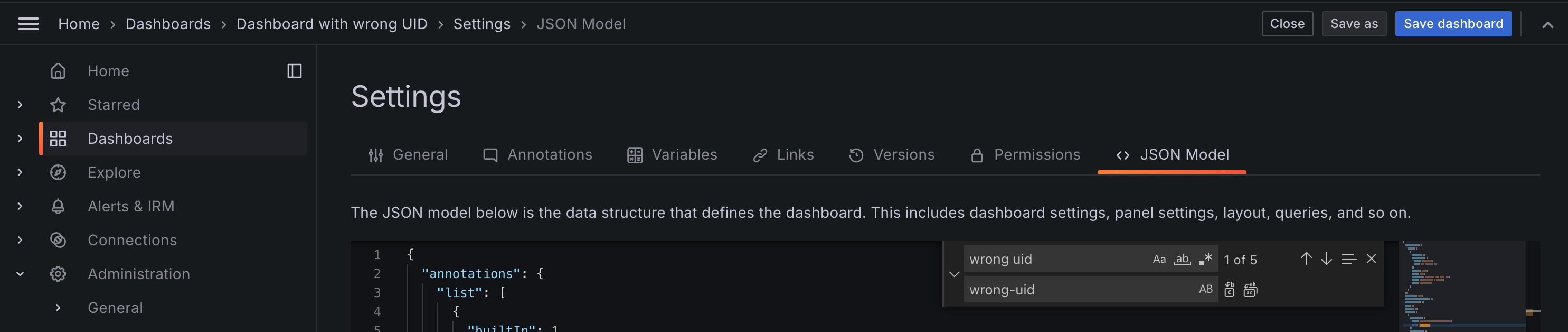
Как обновить мои правила оповещений для использования нового или обновлённого источника данных?
Откройте правило оповещения, которое нужно изменить, и найдите источник данных, используемый для условия запроса/оповещения. Затем выберите новый источник данных в раскрывающемся списке и сохраните правило оповещения.
Ужесточение проверок совместимости версий в командах установки плагинов через CLI
Начиная с Grafana 10.2, конечная точка для проверки совместимых версий при установке плагина с помощью grafana cli plugins install изменилась, из-за чего версия зависимостей Grafana больше не учитывалась. Это могло привести к тому, что CLI устанавливал плагины, которые не полностью совместимы, исходя из определения совместимости плагина через свойство grafanaDependency в файле plugin.json.
Что делать, если я хочу игнорировать проверку совместимости?
Мы не рекомендуем устанавливать плагины, объявленные как несовместимые. Однако, если вам нужно принудительно установить плагин, несмотря на то что он объявлен несовместимым, обратитесь к инструкции Установка плагина из ZIP.
Миграция таблицы аннотаций
Запланируйте увеличение использования диска при обновлении с Grafana v11.x
Обновление с Grafana v11.x до Grafana v12.x запускает полное переписывание таблицы annotation. Миграция заполняет новый столбец dashboard_uid, из-за чего база данных переписывает всю таблицу и перестраивает её индексы.
В средах с большими наборами данных аннотаций может наблюдаться значительное временное увеличение использования диска, что может привести к:
- Быстрому расходованию диска в томе данных базы данных
- Сбоям миграции базы данных (например, “could not extend file: No space left on device”)
- Сбоям запуска Grafana
- Длительному простою в процессе обновления
Как узнать, затронут ли я?
Вы затронуты, если обновляетесь с Grafana v11.x до v12.x и в вашей базе данных есть большая таблица annotation.
Чтобы проверить размер таблицы аннотаций, подключитесь к своей базе данных и проверьте размер таблицы.
Для PostgreSQL выполните следующий запрос:
SELECT
    pg_size_pretty(pg_relation_size('annotation'))       AS table_size,
    pg_size_pretty(pg_indexes_size('annotation'))        AS indexes_size,
    pg_size_pretty(pg_total_relation_size('annotation')) AS total_size;
Для MySQL выполните следующий запрос:
SELECT
    ROUND(data_length / 1024 / 1024, 2) AS table_size_mb,
    ROUND(index_length / 1024 / 1024, 2) AS indexes_size_mb,
    ROUND((data_length + index_length) / 1024 / 1024, 2) AS total_size_mb
FROM information_schema.tables
WHERE table_schema = DATABASE()
    AND table_name = 'annotation';
Для SQLite проверьте размер файла базы данных напрямую, так как SQLite хранит все таблицы в одном файле. Вы можете выполнить следующую команду в терминале:
ls -lh <PATH/TO/GRAFANA.DB>Если общий размер составляет несколько гигабайт или больше, вам следует заранее спланировать действия перед обновлением.
Что мне сделать перед обновлением?
Перед обновлением выполните следующие шаги:
-
Проверьте доступное дисковое пространство: Убедитесь, что в томе данных вашей базы данных есть как минимум в 2–3 раза больше свободного дискового пространства, чем текущий размер таблицы
annotation. -
Просмотрите свои данные аннотаций: Подумайте, нужно ли вам сохранять все исторические аннотации.
-
Удалите старые аннотации (необязательно): Если у вас есть ненужные аннотации, удалите их перед обновлением.
-
Создайте резервную копию базы данных: Всегда создавайте резервную копию базы данных Grafana перед выполнением обновления. Для получения дополнительной информации обратитесь к разделу Резервное копирование Grafana.
Что мне сделать после обновления?
После успешного обновления до Grafana v12.x вы можете вернуть дисковое пространство, выполнив операции обслуживания базы данных в окне технического обслуживания.
Для PostgreSQL выполните операцию VACUUM FULL для таблицы annotation:
VACUUM FULL annotation;Для MySQL выполните операцию OPTIMIZE TABLE для таблицы annotation:
OPTIMIZE TABLE annotation;Для SQLite выполните операцию VACUUM для базы данных:
VACUUM;Эти операции требуют блокировки таблицы и могут занять значительное время в зависимости от размера таблицы. Планируйте выполнять их в период низкой нагрузки.